ACE View is an ontology and rule editor that uses Attempto Controlled English (ACE) in order to create, view, edit and query OWL ontologies and SWRL rulesets.
In many cases you don't have to know the details of OWL and SWRL — the ACE view hides them from you. But you do have to know ACE. In order to learn ACE visit the Attempto project website and read e.g. Writing OWL ontologies in ACE.
If you have questions, then post them to the Attempto Mailing List.
In order submit bugs and feature requests use the ACE View Issues List.
The latest version of ACE View is 1.3.1, see the RELEASE NOTES. This version is only compatible with Protégé v4.1. Experimentally, ACE View 2.0.0-alpha supports Protégé v5.5.
ACE View is implemented as an extension to the popular ontology editor Protégé.
Installing ACE View is a simple process thanks to the Protégé plug-in auto update feature, which provides an overview of the available Protégé plug-ins, allows new plugins to be installed, and existing ones to be updated in case they have newer versions.
Proceed as follows.
That's it!
In case ACE View is not included in the default set of Protégé plugins you can override the location where Protégé is looking for the plugins. Enter either one of the following URLs in :
If everything else fails, then just manually download and copy the ACE View jar-file from https://github.com/Kaljurand/aceview/releases into the Protégé plugins-directory.
The quickest way to reach ACE View after Protégé has been launched, is to select "Create new OWL ontology", press "Continue" twice, and press "Finish". The Protégé interface opens up with all its tabs, including the "ACE View" tab. In case the "ACE View" tab is not visible, then load it by clicking on the "ACE View" menu item in the menu. All ACE views are available under but note that most of them are displayed automatically by the "ACE View" tab.
Note: if some ACE View views did not load (and there was an error message) then execute: .
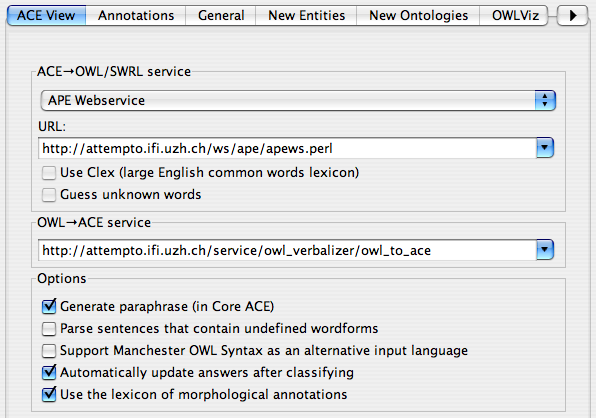
ACE View relies on two external translation tools — ACE→OWL/SWRL and OWL→ACE. By default, ACE View is configured to use their respective webservices running on the Attempto server, i.e. you must be connected to the internet to be able to use ACE View. However you can also install these tools locally and configure ACE View to use the local versions (see below). The Protégé preferences panel contains a tab with the ACE View preferences where you can configure the webservice addresses. For example, set them as shown in the following screenshot of the preferences-panel.
Normally, one is expected to first define the content words before they are going to be used in ACE sentences. For example, in order to enter the sentence Every dog hates a cat. one must first define the words `dog', `hate', `cat' as OWL entities (class and property names). (Note that the morphological surface forms like `hates' are generated automatically and stored as entity annotations while the entity is being declared.) If you want to enter a sentence without defining the words first, then you can enable "Parse sentences that contain undefined wordforms" and rely on the built-in lexicon ("Use Clex") and guessing ("Guess unknown words") that the ACE→OWL/SWRL service provides. In case you switch on "Generate paraphrase" then all the sentences entered in the ACE View are additionally paraphrased. The paraphrases belong to a fragment of ACE called Core ACE. This fragment reformulates every-sentences as if-then-sentences and replaces relative clauses with full sentences.
If "Support Manchester OWL Syntax ..." is set then each input is first parsed with the Manchester OWL Syntax (MOS) parser, and only if this fails the ACE parser is used. This allows one to mix ACE and MOS in the ontology. Note that currently only class axioms (SubClassOf, DisjointWith, and EquivalentTo) are supported and every entity in their signature must be already declared in the ontology.
ACE View provides many different views to the ACE text. Some of these views are editable, i.e. the word(form)s and sentences shown in the view can be changed or removed.
| View name | Function | Editable? | Default? |
| ACE Snippet Editor | Allows a single snippet to be added to or deleted from the active ACE text. A snippet is a short sequence of one or more ACE sentences. Usually just one sentence. | YES | YES |
| ACE Feedback | Shows some information about the selected snippet: error messages, paraphrase, annotations, corresponding logical axioms, similar snippets. | no | YES |
| ACE Text | Shows the active ACE text as plain text | YES | YES |
| ACE Snippets | Shows the active ACE text as a list of snippets. | YES | YES |
| ACE Q&A | Shows all the questions (and their answers) in the active ACE text | YES | YES |
| ACE Entailments | Shows the entailments derived from the active ACE text | no | no |
| ACE Explanation | Shows the explanation for the snippet that was active when the -button was pressed | no | YES |
| ACE Lexicon | Shows the active lexicon as a table | YES | YES |
| ACE Lexicon format | Shows the active lexicon as plain text ACE Lexicon format | no | no |
| ACE Words | Shows an alphabetically sorted list of content words of the active ACE text | no | YES |
| ACE Word Usage | Shows the usage of the selected content word | no | YES |
| ACE Index | Lists all the content words together with their usage in the active ACE text | no | no |
| ACE Metrics | Shows some statistics about the active ACE text and its lexicon | no | YES |
All views are available from the menu. Unless the view is more technical, it is also included in the default configuration of the ACE View tab.
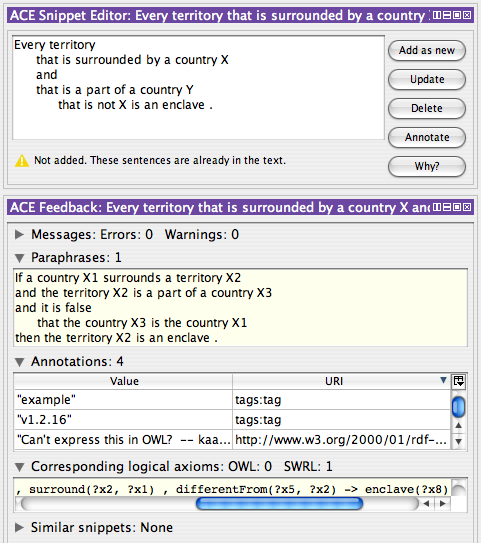
The Snippet Editor is for working with very short texts (one or two sentences), where the sentences are syntactically or logically very connected, e.g.
The Snippet Editor shows the currently selected snippet (either asserted or
entailed) and allows you to
change or delete it, or add a new snippet to the active ACE text. The editor
supports auto-completion of content word forms (press Tab).
The -button lets you annotate the
snippet (e.g. add tags or comments), and
the -button lets you ask for an explanation
of why the snippet holds.
The Snippet Editor is best used together with the "ACE Feedback" view which shows the
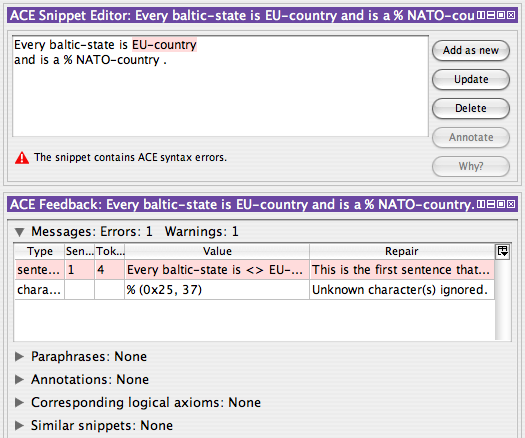
If a sentence could not be translated into OWL/SWRL then an error message is shown explaining the nature of the error. For example, the sentence Every baltic-state is EU-country ... is not a correct ACE sentence because it lacks a determiner in front of a noun.
Text view is a simple view that shows the complete knowledge base as an ACE text. You can enter, change and delete snippets in this view, and integrate the changes into the knowledge base by pressing "Update".
For example, create a new ontology and enter the following ACE text in the "ACE Text" view. (Note that you have to use "Clex" and "guessing" to successfully parse this text, unless you enter all the words as OWL entities first.)
Every country is a territory.

Every city is a territory.

No body-of-water is a territory.

Every city-state is a city.

Every city-state is a country.

Every territory that is not bordered by a body-of-water is a landlocked-territory.
Every landlocked-territory is a territory that is not bordered by a body-of-water.

Every territory that is surrounded by a country is an enclave.
Every enclave is a territory that is surrounded by a country.

Every territory that is surrounded by something that is not a body-of-water
	is not bordered by a body-of-water.

Every non-landlocked-enclave is an enclave that is not a landlocked-territory.

Italy is a country.

Vatican_City is a city-state.
Vatican_City is surrounded by Italy.

What is a territory?

Which enclave is not a landlocked-territory?
Now press "Update" to integrate this text into the ontology. Every ACE view will now display an aspect of this text and many of the views let you modify it.
"ACE Words" provides a view to all the content words (nouns, verbs, proper names) of the ACE text. For each word its frequency is show in parentheses. The frequency denotes the number of snippets that contain this word in the text. Clicking on the word selects the word so that other views will start displaying information about the word, e.g. its usage will be displayed in the "ACE Word Usage" view.
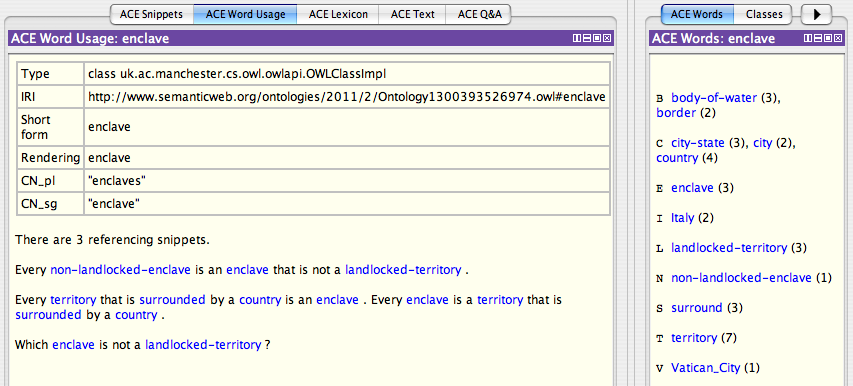
Words that do not have linguistic annotations (singular, plural, and past participle forms) yet are displayed in grey color.
The "ACE Snippets" view is similar to the "ACE Text" as it displays the complete ACE text. The "ACE Snippets" view, however, is much more structured because the snippets are listed in a table making the individual snippets easier to access.
Clicking on "ACE Snippets" opens a view that lists all the snippets
in the ACE text together with some of their properties (content word count,
parser error/warning message count, corresponding OWL/SWRL axiom count, timestamp, ...).
You can sort the list alphabetically or by the properties, you can highlight or show only
snippets which contain the currently selected word,
you can search the table by a keyword (press Ctrl-F),
and you can also edit each snippet by double-clicking on the corresponding table row.
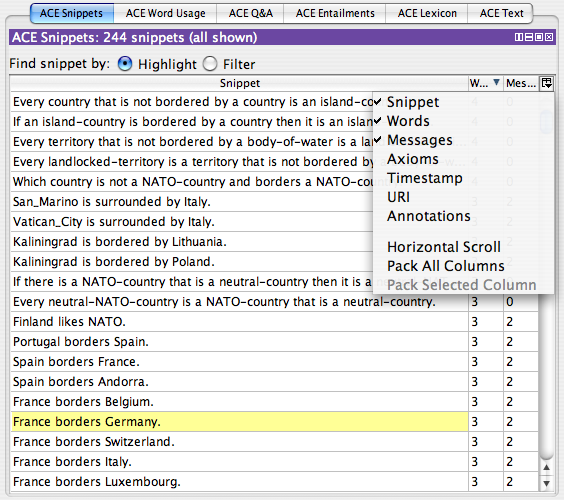
Clicking on the table row selects the corresponding snippet, so that e.g. the Snippet Editor will display the snippet, and the Snippet Feedback will show the properties of the snippet.
The Q&A view lists all the questions (i.e. asserted interrogative snippets) which will be answered on the basis of the existing text including also the implicit knowledge in the text that is calculated by the reasoner. In order to use the Q&A view you first need to select and start a reasoner (e.g. , ). Now, every time you synchronize the reasoner () followed by the "Update answers" action the answers to the questions are updated.
The questions must contain exactly one query word (either `who', `what', `which', or `whose'), e.g.
The answers are given as three lists of words.
For example the following screenshot shows a list of questions about a text about European countries, and shows the answers to the question Which EU-country is a NATO-country?.
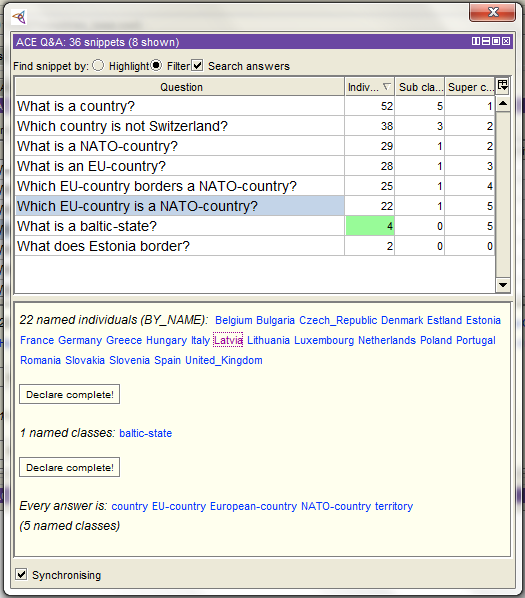
The list of questions can be highlighted and filtered by selecting an entity, just like with the list of regular snippets, i.e. only questions that contain the selected entity are highlighted/shown. The Q&A view offers also another option — by checking "Search answers" only the questions are highlighted/shown whose answer contains the selected entity. For example, the above screenshot shows only the questions whose answer contains the selected entity Latvia.
The answer counts are presented in a tabular and sortable form, so that you can easily get answers to questions that involve counting and comparison of counts. Such questions cannot be expressed in the underlying DL-Query language nor in ACE (at least currently). Such questions are for example:
Note that the counts represent known answers, i.e. answers which the reasoner was able to derive on the basis of the knowledge base. If the reasoner has not yet been applied to the question then a question mark (?) is shown in the count cells. In case the question corresponds to an unsatisfiable expression (e.g. Which EU-country is not an EU-country?) then nothing is displayed in the cell. If the answer is known to be complete (i.e. no new individual/class can become part of the answer) then the cell background is green. Incomplete answers can be declared complete: this means that a new snippet that asserts completeness will be added to the text.
Every answer can be expressed as an ACE sentence (i.e. as full answer) but for a better overview just lists of words are presented. However, when you click on a word then the full answer appears in the Snippet Editor. You can add this snippet to the text (if it's not already there), or remove it from the text (if it is there), or ask for the explanations using the -button.
The Entailments view lists sentences that follow from but that were not explicitly stated in the text. The list is updated whenever you sync the reasoner (similarly to the Q&A view). As any non-trivial text entails infinitely many sentences, only the sentences with certain simple structure are reported in this view, e.g.
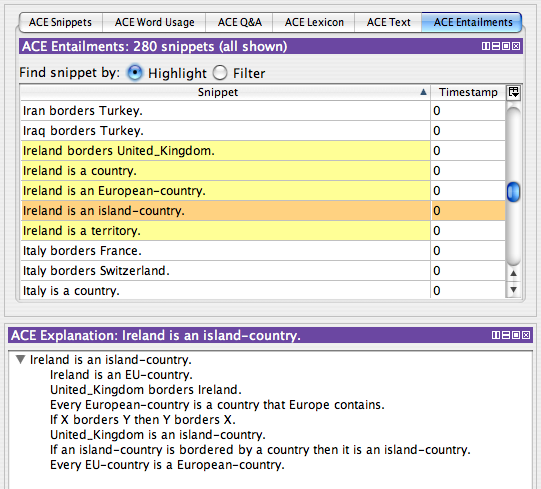
Such entailments can also be explained by listing a minimal set of snippets that cause the entailment. In order to see the explanations, double-click on the entailed snippet, the explanation appears in the Explanation view.
Entailments which might point to certain modeling errors are written in red (e.g. Nothing is a non-landlocked-enclave.). Each entailment is tagged with a timestamp. Tag 0 means current entailment. Negative tags (-1, -2, etc.) point to entailments which do not hold currently, but which were obtained in previous executions of the reasoner. Such tagging provides a simple method for detecting lost entailments.
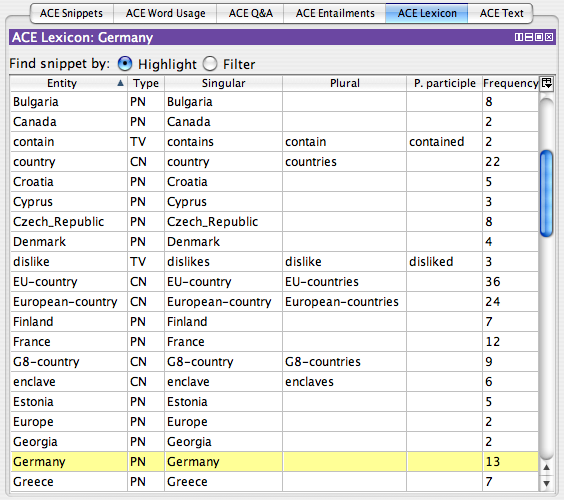
The lexicon view lists all the content words (nouns, transitive verbs, proper names) in the ACE text. The surface forms (singular, plural, past participle) of each word can be edited by double-clicking on the respective table cell.
The actions initiated via the standard Protégé menus (e.g. Back/forward arrows, search box, ) trigger a corresponding change in the ACE View views. In addition, there are ACE View specific actions listed in the -menu. The actions apply to the active ACE text.
| Action name | Function |
| Reparse failed snippets | Reparses every snippet that has no corresponding OWL/SWRL axioms. Useful if there are many snippets which have failed to parse because of missing lexical entries, and meanwhile the required entries have been added. |
| Fill lexicon | Fills every empty slot in the lexicon by generating lexical annotations (singular, plural, past participle) for each OWL entity. |
| Update answers | Updates the answers to every question in the ACE text. This can take a long time, depending on the complexity of the text and the amount and complexity of the questions. (Note that you can set an ACE View preference to launch this action automatically whenever the reasoner has completed the synchronization.) |
| Annotate every axiom with ACE text | Adds an ACE text annotation to every logical axiom in the ontology. (When the ontology is reloaded then these axioms are not verbalized but instead the annotations are used to create the corresponding snippets.) |
Here are some example ACE texts and OWL/SWRL ontologies for you to play with. The ACE texts should be copied into the "Text view", after which "Update" should be pressed. The OWL ontologies can be opened in the usual way, via .
Reasoning with the examples was tested with the HermiT 1.3 reasoner plugin.
people_pets_nice.ace.txt (122 sentences) is the famous "People and pets" ontology automatically verbalized in ACE and later manually modified a bit to make it more readable. Note that it uses the word `pet' as both a regular noun and a relational noun (of-construct). As a result you get an entity `pet' which is used via punning both as a class name and object property name.
You can also verbalize the original OWL version from the TONES Ontology Repository.
This text/ontology entails that Nothing is a mad-cow..
countries.ace.txt (~250 snippets) contains some membership and bordering information about (mostly European) countries. This text also contains many questions (the answers to which will be filled in if the reasoner is executed). Note that one should first load the vocabulary countries_base.owl before the ACE text can be parsed.
The "Iokaste" example (on pages 73, 74) demonstrates a complex (open-world) reasoning problem. The question is who of the Greek characters mentioned in the text could be classified as "answer". The ACE version of the puzzle is
Iokaste's child is Oedipus.

Iokaste's child is Polyneikes.

Oedipus's child is Polyneikes.

Polyneikes' child is Thersandros.

Oedipus is a patricide.

Thersandros is not a patricide.

Everybody whose child is a patricide whose child is
	somebody who is not a patricide is an answer.
Note that we could get the answer also by asking the question:
Whose child is a patricide whose child is somebody who is not a patricide?
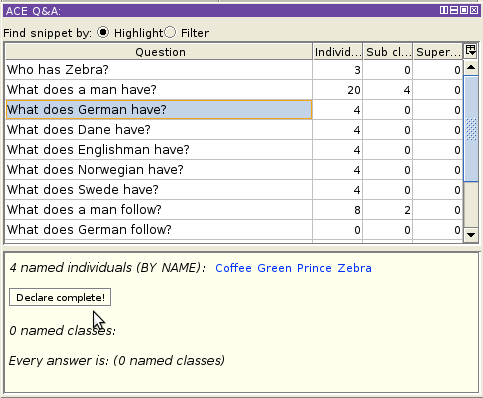
zebra.ace.txt (~45 snippets) constitutes one possible way to encode the Zebra puzzle in ACE. Our starting point was the formulation of the puzzle in Stackoverflow: Solving “Who owns the Zebra” programmatically?. (There exist many other slightly different formulations, where the only difference seems to be the choice of words, see more at Wikipedia: Zebra Puzzle.)
This text entails that German has Zebra. but note that reasoners (at least HermiT and Pellet) take a long time to figure this out (especially considering the tiny size of this text). The explanation service will take even longer.
To test the speed of ACE View on very large ontologies, load e.g. aneurist-1.0.owl from the @neurIST project. (Another copy is here.) This ontology contains 12,774 axioms and it imports an ontology with 356 axioms.
With the OWL verbalizer installed locally, the ontology should be loaded in under a minute on a modern computer (e.g. it takes 45 seconds on an Intel Core i3 laptop). Updates to the ACE views when the ontology is changed occur also reasonably fast.
Note that it is better to switch off ACE surface form generation in the preferences before loading the ontology.
jobs.ace.txt is an ACE formulation of the Jobs Puzzle. Note that one should first load the vocabulary jobs_base.owl before the ACE text can be parsed.
After reasoning and question answering the Q&A View will display:
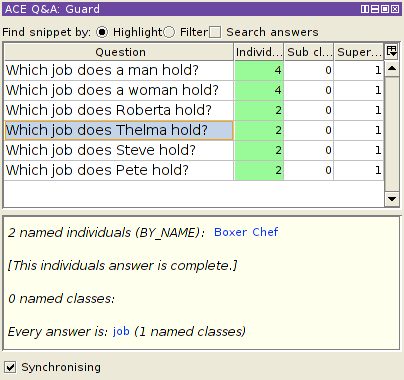
e.g. Thelma holds exactly two jobs, Boxer and Chef.
five_houses.ace.txt (~20 snippets) describes a sequence of five houses (House1, ..., House5). The properties of the sequence are described (e.g. there is only a single "first house"), but where the houses are exactly located is left open.
House_1 (first) → House_? → House_3 (middle) → House_? → House_? (last)
Answers to the questions give us feedback if our modeling is correct (and complete enough).
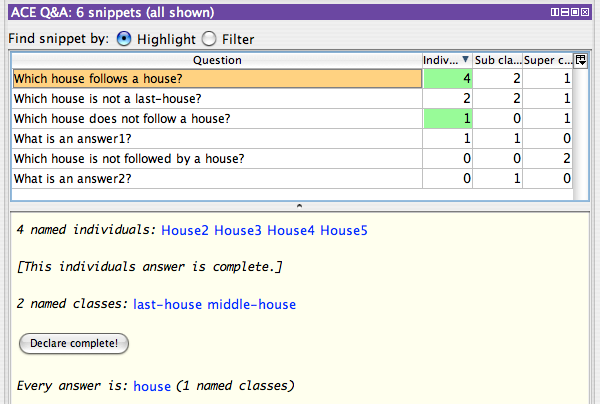
Note that although this text is tiny, it can take a reasoner a long time to answer these questions.
APE — the Attempto Parsing Engine — offers conversion of ACE sentences into various logical forms, including OWL/SWRL axioms and DL-Queries. From ACE View, APE can be accessed via three different interfaces.
All three provide the exact same functionality.
By default, the APE webservice interface is used, accessing APE that runs on the Attempto server. This requires no installation and configuration, but one needs an internet access and has to live with a slower processing speed.
Alternatively, you can install APE on your computer and access it locally.
Follow the instructions
at the Attempto Downloads page.
If you have a local APE installation (i.e. the file ape.exe), then you
can use all the three types of interfaces. See the README.txt that comes
with the APE distribution to learn how to run APE in the various modes.
The fastest ACE processing is provided by APE Local. (APE Local is about 1.5 times faster than an HTTP or socket interface that is set up locally).
To set up APE Local, do the following steps.
clib, sgml, http,
and jpl. On Windows and Mac OS X, you get all the required packages
with the default installation. On Linux you might need to install the packages separately,
e.g. on Ubuntu, install the Ubuntu packages: swi-prolog, swi-prolog-clib,
swi-prolog-sgml, swi-prolog-http, swi-prolog-java
(or swi-prolog-jpl).libjpl is referenced by the Java library path.
PATH.
The bin-directory contains the required jpl.dll. Something like:
SWI_HOME_DIR=C:\Program Files\pl
PATH=%SWI_HOME_DIR%\bin\;%PATH%
JAVA_LIBRARY_PATH. The lib-directory contains the required
libjpl.jnilib file. The location of the lib-directory depends
of the Mac OS X and SWI-Prolog versions, e.g. on MacOS X Tiger/PPC with SWI-Prolog 5.6.61,
using Bash-shell, this command looks like:
export JAVA_LIBRARY_PATH=/opt/local/lib/swipl-5.6.61/lib/powerpc-darwin8.11.0/
libjpl is called libjpl.so)jpl.jar with the version that comes with your SWI Prolog installation.ape.exe by downloading the APE package from
the Attempto Downloads page
and following the README.txt.ape.exe.It is also possible to run the OWL→ACE webservice locally, resulting in much increased performance:
README.txt filenohup swipl -x owl_to_ace.exe -- -httpserver -port 5123 -workers 2 -timelimit 30 > stdout.txt 2> stderr.txt &
http://localhost:5123Apart from the libraries that come with Protégé 4, ACE View depends of the following libraries. These are all included in the ACE View distribution and also in the jar-file, so that you do not need to download them separately.
attempto_ape.jar (LGPL) from Attempto project
(in Attempto Java Packages) provides three interfaces to the ACE parser (APELocal, APEWebservice, and APESocket).attempto_owl.jar (LGPL) from Attempto project
(in Attempto Java Packages) provides an interface to the OWL verbalizer.swingx-1.0.jar (LGPL) from SwingLabs is used for the rich (sortable,
editable, filterable, highlightable) tables.swing-worker-1.2.jar (LGPL) from http://swingworker.dev.java.net is used to run some time-consuming jobs (e.g. explanation generation)
in the background.simplenlg-v37.jar (simplenlg-license.txt) from SimpleNLG package
is used to automatically generate surface forms (plural nounforms, and singular and past participle verbforms)
for classes, properties and individuals.commons-httpclient-3.1.jar (Apache 2) used by attempto_ape.jar (specifically APEWebservice)
and attempto_owl.jar which use it for the HTTP communication with the ACE webservices (see Jakarta Commons HTTP Client).jpl.jar (LGPL) used by attempto_ape.jar (specifically APELocal).jdom.jar ("Apache-style" license) used by attempto_ape.jar.commons-codec-1.3.jar (Apache 2) used by commons-httpclient-3.1.jar.RadixTree-0.3.jar (MIT) from radixtree (Implementation of Radix Tree/Patricia trie/crit bit tree) used for auto-completion.guava-r08.jar (Apache 2) from guava-libraries (Guava: Google Core Libraries for Java 1.5+)The ACE View source code is available at https://github.com/Kaljurand/aceview.